PNG to JPG
PNG to JPG converts your image into a downloadable JPEG, with a chosen quality setting and solid background for transparency; JPEG changes pixels and cannot keep the original alpha channel.
Ready. One PNG, up to 8 MiB.
Original PNG
Converted JPG
No converted file yet.
Download JPGSame original PNG, four real JPEG exports
We made one 480 × 240 PNG containing a gradient, printed text, a partly transparent rectangle and circle, and empty transparent areas. Its stored file size is 7165 bytes. We uploaded that exact file in Chrome for every row, exported JPEG with the displayed settings, downloaded each resulting file, then decoded the exported JPEG again in the browser. These are measurements of our own generated files, not results copied from another converter.
| Quality setting | Background | JPG bytes | Changed RGB pixels | Maximum channel difference | Non-opaque pixels |
|---|---|---|---|---|---|
| 90 | White | 11737 | 79035 | 78 | 0 |
| 50 | White | 6035 | 101587 | 113 | 0 |
| 90 | Black | 11062 | 78927 | 84 | 0 |
| 50 | Black | 5543 | 101457 | 113 | 0 |
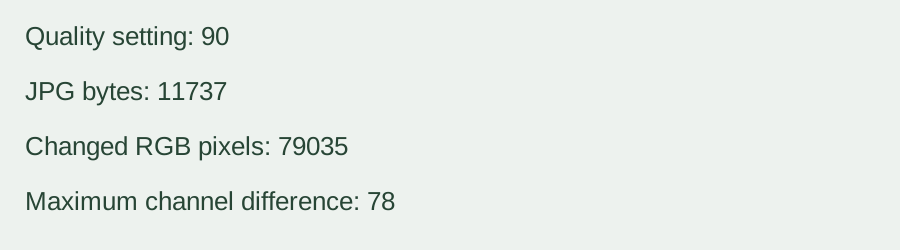
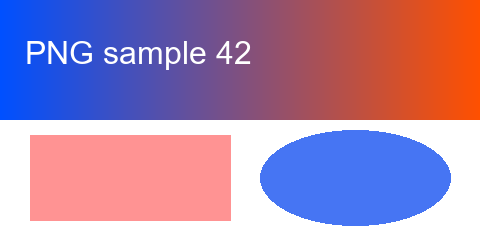
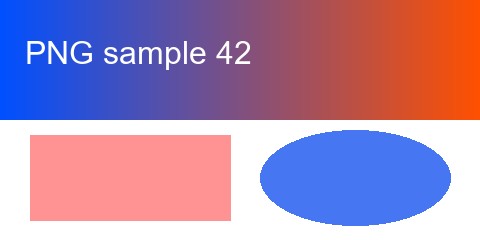
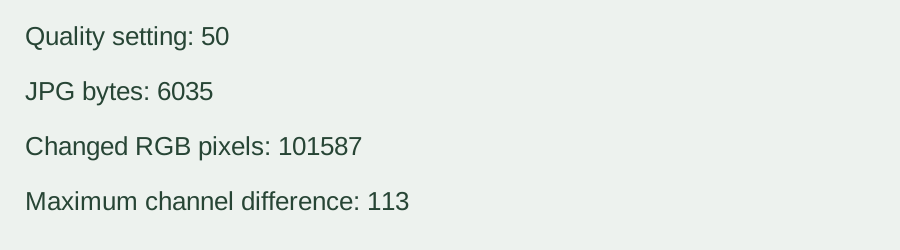
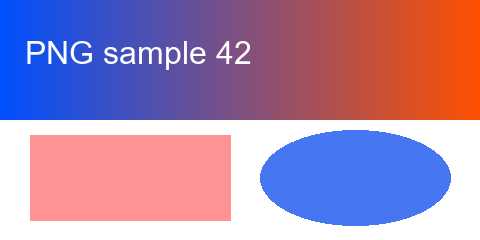
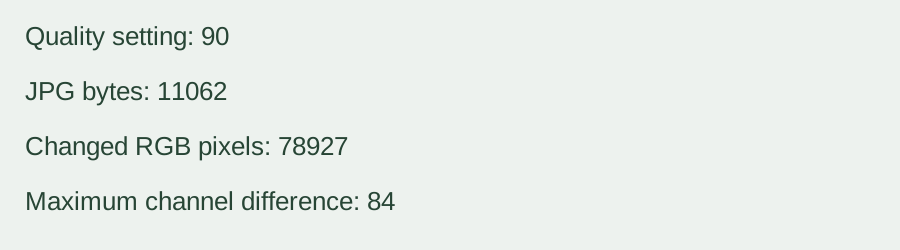
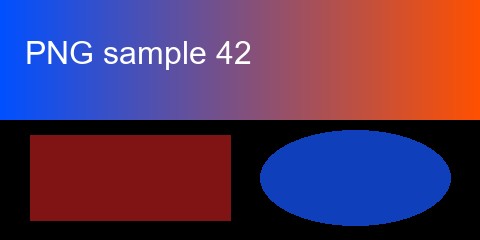
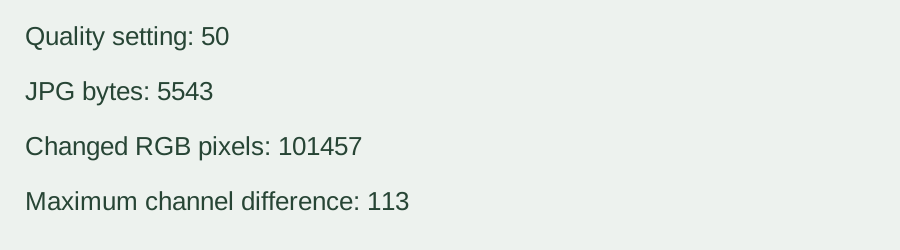
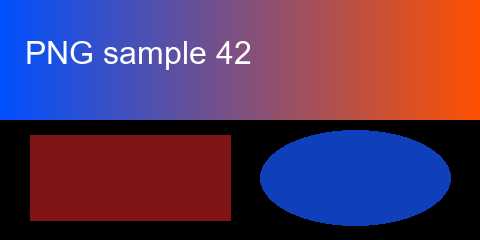
All four decoded exports kept the 480 × 240 dimensions. Their alpha channels were fully opaque: no decoded pixel had alpha below 255. White and black backgrounds gave different visible replacements for the original transparent areas. This demonstrates background compositing, not preservation of transparency. The JPEG cannot restore the original alpha channel.
For the RGB comparison we first painted the selected solid background, drew the original PNG over it, and read the canvas pixels. After exporting and decoding the JPEG, we compared each pixel against that flattened reference. A changed pixel means any red, green or blue channel differed. Maximum channel difference is the largest absolute channel difference, on the 0–255 channel scale. The comparison is against the same background for each row, not against transparent RGB values.
The numeric quality setting is an encoder request, not an accuracy percentage, a retained-detail percentage or a promised file-size reduction. These results apply to this particular original image and browser export. In our sample, changing the setting changed stored bytes and decoded pixels; another image can behave differently. Re-encoding the downloaded JPEG as PNG stores the JPEG’s decoded pixels, not the pixels or transparency of the source PNG. We also used Python Pillow to save each downloaded JPEG as PNG and reopen it: all four reverse PNG files retained the decoded JPEG RGB pixels exactly, and none matched the original PNG RGBA pixels. This reverse check did not recover the source PNG.
To reproduce a row, save the displayed original PNG, choose the table’s quality and background, convert and download it. Open the downloaded JPEG and compare the visible result. The tool shows its file bytes and decoded-pixel checks after each real conversion. It never returns one of these example files in place of your upload.
Quality and transparent backgrounds
Lowering the quality setting asks the browser JPEG encoder for stronger compression. Fine edges, small text and gradients can change; file size depends on the image and browser. Even setting 100 does not promise unchanged pixels. JPEG has no alpha channel. This tool composites transparent and partly transparent pixels onto white or black before exporting. Select the background you need, then inspect the preview before downloading.
Supported input, output and limits
One PNG image per run, checked by its PNG signature. Maximum file size: 8 MiB. Maximum decoded dimensions: 4,000 pixels per side and 8 million pixels total. Output is a downloadable image/jpeg file with a .jpg filename and the same dimensions. No resizing, batch conversion or saved history. Animated PNG is exported as a single static image; animation and source metadata are not preserved. Unsupported or unreadable files report an error instead of a substitute image.
Conversion stays in your browser. No login or registration is required, and no image is uploaded to a conversion API. Available browser memory still affects which images can be processed. There is no daily counter. Change a setting and convert again; an old download is cleared when its settings no longer match.
How to convert
Choose a PNG, set JPEG quality and the transparency background, then press Convert to JPG. Inspect the original and converted previews, read the output byte count and press Download JPG. The download is the file generated from your selected image.
How does this differ from the other image tools?
Base64 to Image restores encoded image bytes. PNG to Base64 encodes a PNG file into text. ASCII Art Generator maps brightness to characters. Image to Base64 encodes image files. This page changes the image format to JPEG. It does not encode Base64 or generate character art.
Related image representation walkthrough
This existing video explains character art, not JPEG export. Loading its player connects to YouTube and shares connection information such as your IP address and playback requests.
To export an uploaded JPEG as a PNG without claiming to recover discarded detail, use JPG to PNG.